
Export and Share Videos in Alight Motion Ultimate Guide 2025
Why Exporting and Sharing Videos in Alight Motion Matters for Creators?
Being a video editor or an image creator sharing your creations with the world is necessary, to make you
🎥 Achieving recognition and enhancing your audience
💰 Boosting your business and monetizing your skills
📂 Save memories with high-quality video exports
Using Alight Motion latest pro, you can easily export and share videos project completely free and without watermarks.
Improve your workflow by checking out our guide on how to trim and split videos in Alight Motion for seamless editing before export.
Step-by-Step Guide to Export and Share Videos in Alight Motion
Once you have edited a video using the Alight Motion app, now follow the easy steps to export it successfully.
Step 1. Click on the Export option at the top of the screen
Step 2. You will find a new interface with different options
Step 3. Choose the video quality you want
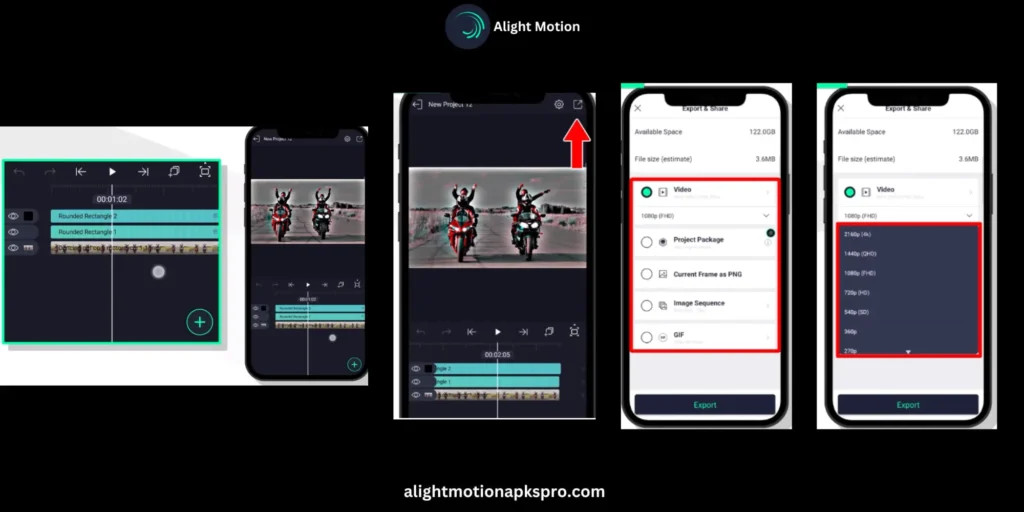
Step 4. Select the image format like PNG, JPG or any.
Step 5. Once you have done all the settings, now click the export button to export video.
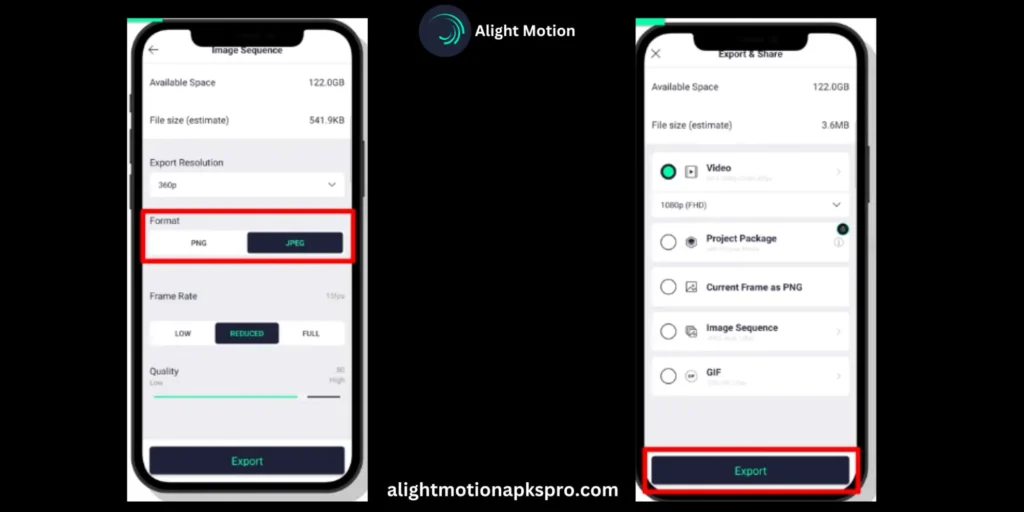
Step 6. After that, you will receive two options: i. Save it, ii. Share it
It’s up to you whether you are saving it or you want to share it with your friends or on any social media channel.
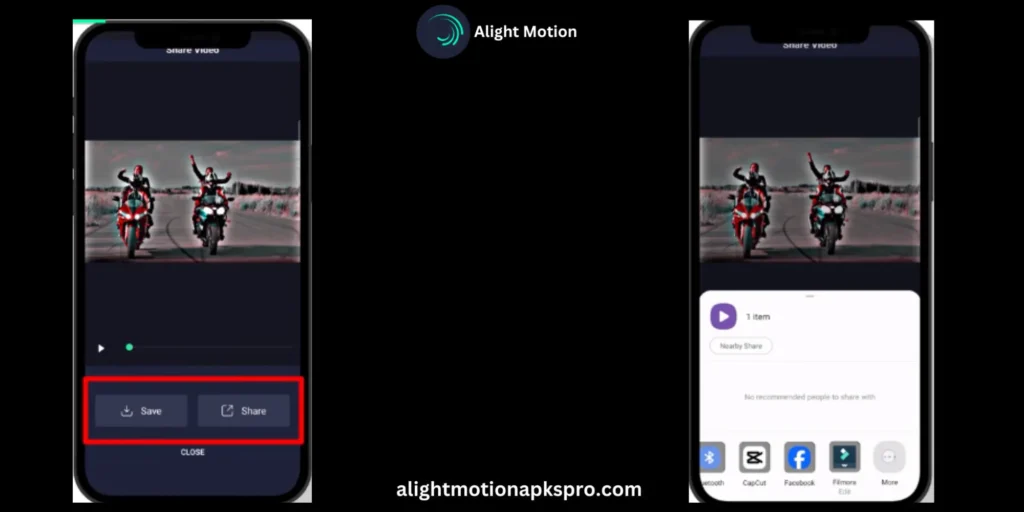
This is how you can export and share videos.
Best Exporting and Rendering Settings in Alight Motion Pro Apk
Best Settings For YouTube
High quality export setting for YouTube is
➤ Resolution: 1920x1080 (Full HD)
➤ Frame Rate: 60fps so that motion become smooth
➤ Bitrate: 8–12 Mbps
➤ Format: MP4
This setting gives balance for quality and file size
For perfect animations, learn how to add keyframes in Alight Motion to enhance your video effects before exporting.
Best Settings For Tiktok
For tiktok the fast exporting and vertical size is necessary
➤ Resolution: 1080x1920 (9:16 ratio)
➤ Frame Rate: 30fps
➤ Bitrate: 4–6 Mbps
➤ Format: MP4 or MOV
Use vertical layout and apply rendering effects and captions.
Best Settings For Instagram
For instagram reals or posts this setting is best.
➤ Resolution: 1080x1350 or 1080x1080
➤ Frame Rate: 30fps
➤ Bitrate: 5–8 Mbps
➤ Format: MP4
Make files less than 100MB so that there will not be any compressing issue.
How to Fix the Alight Motion Export Problem?
Why does Alight Motion export stop when it reaches 100%?
These may be the issues:
Solution: Restart phone, remove extra layer or reduce the resolution
App Crashes while exporting?
Solution: Use that Mod APK which has a stable export feature.
How to Export Heavy VFX and Special Effects Project?
Export heavy VFX Projects with smooth Render
➤ For Preview use 720p, For final export use 1080p
➤ Do not apply more layers at one time
➤ If your project is heavy then export it into parts.
Best Export settings for Special Effects
➤ Resolution: Use 1080p or more than that
➤ Frame Rate: Use 60fps for smooth transition
➤ Enable the GPU Rendering: If option available enable it.
This settings gives a cinematic and crisp export.
Export Settings Table for clear Understanding
| Platform | Resolution | Frame Rate | Format | Bit-rate |
|---|---|---|---|---|
| YouTube | 1920x1080 | 60fps | MP4 | 8–12 Mbps |
| TikTok | 1080x1920 | 30fps | MP4 | 4–6 Mbps |
| 1080x1350 | 30fps | MP4 | 5–8 Mbps | |
| VFX Project | 1080p+ | 60fps | MP4 | 10+ Mbps |
How to Save and Share Exported Videos Directly to Your Phone
Once you have created a video using Alight Motion and now want to save it in your phone memory or any other storage capacity for future use, then click on the option at the top of the screen. You will find different options; click on the export option. After that, there is a save option at the bottom of the screen. Click on the save button to save your video in a gallery.
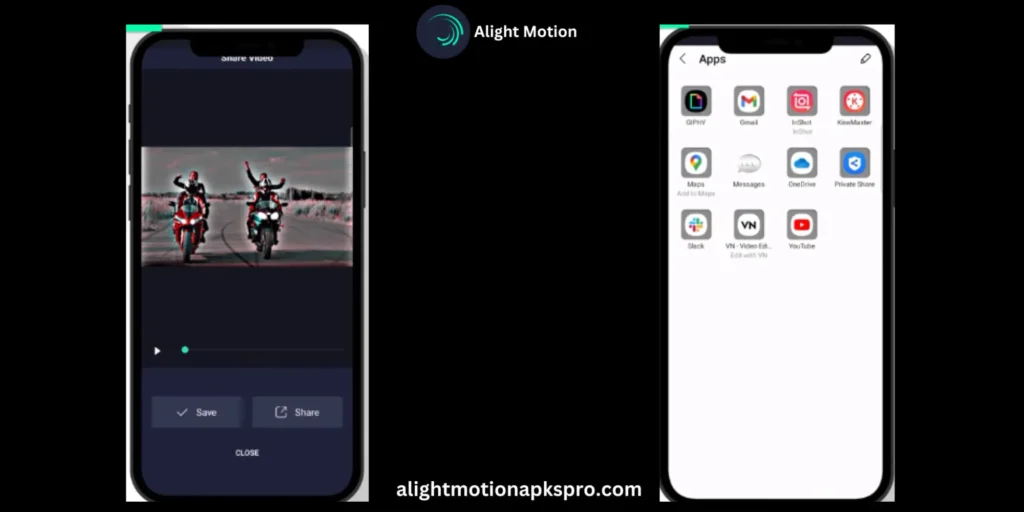
If you want to know how to use Alight Motion, we have provided all the details of this app, how to use various features, and details about its interface. For that, you just need to open the blog page of this website and get to know all about this app.
We have given all the details step by step to export and share videos. We hope that if you read them, your knowledge about the use of Alight Motion will be enhanced, and you can easily make professional videos.
Video Tutorial: How to Export and Share Videos in Alight Motion
FAQs: Answers to Your Questions About Exporting and Sharing Videos
Conclusion
Properly exporting your video is essential to achieving high-quality results and making it easy to share with your audience. Using Alight Motion ultimate, you can share and export your creativity without limitations. We hope that this step-by-step guide has helped you understand how to export and share videos in Alight Motion no watermark. Now start creating and showcase your hidden talent to the world!